RSVP to a game
Screenshots from
What it's for
Take a seat at a game at a store, so the host knows you're coming and the game shows up in your upcoming games.
Who can use it
Players
On Web
How to do it
On Explore, find a game you like in the list beside the map (or on a store's pin) and press RSVP.
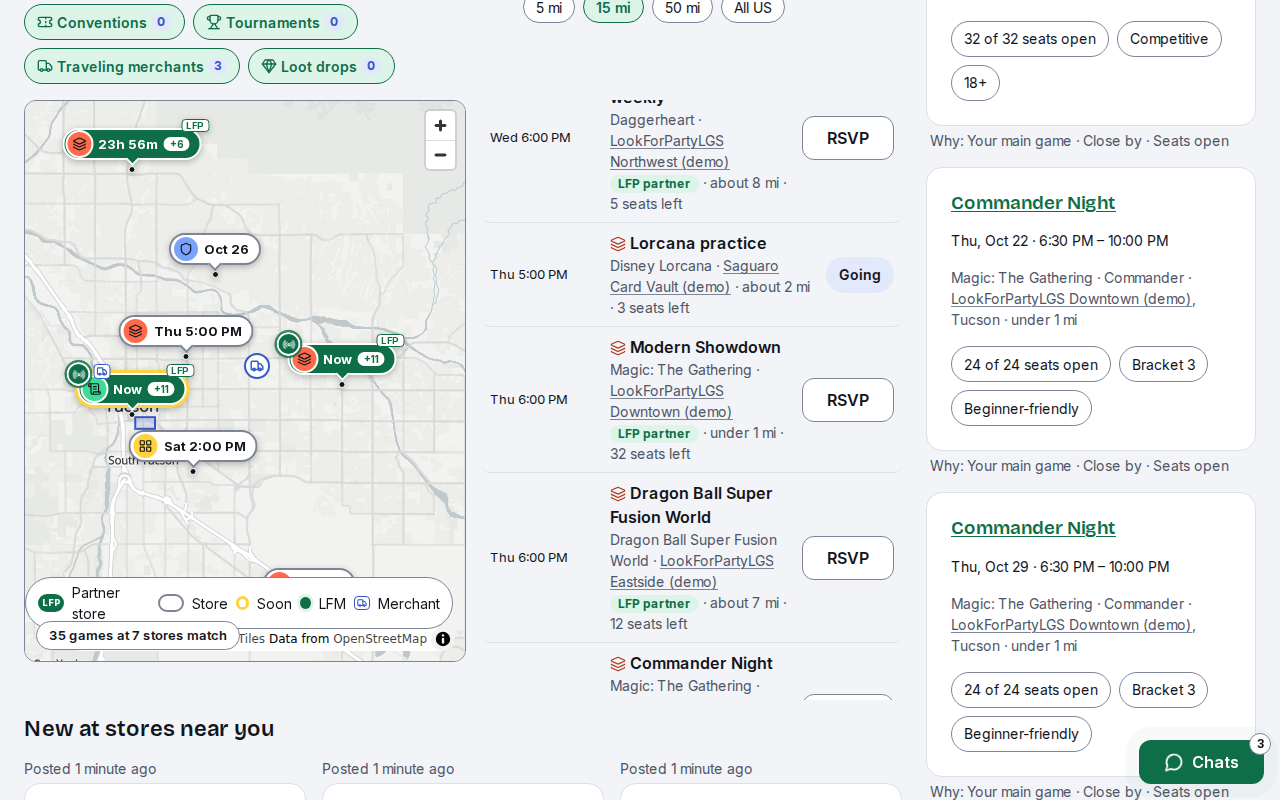
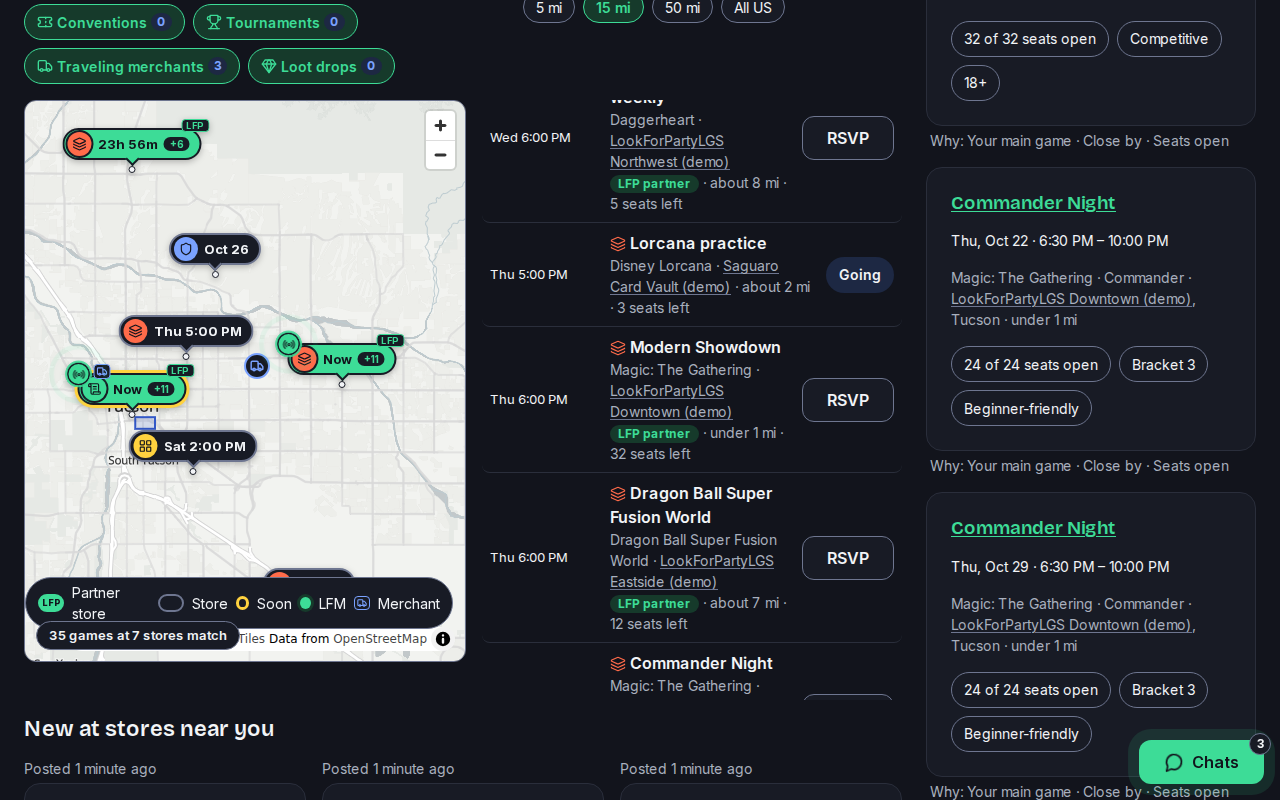
Check the details first: when it is, and the game and format. Then the store and how far away it is, and how many seats are left. Press Full details to see the game's whole page.
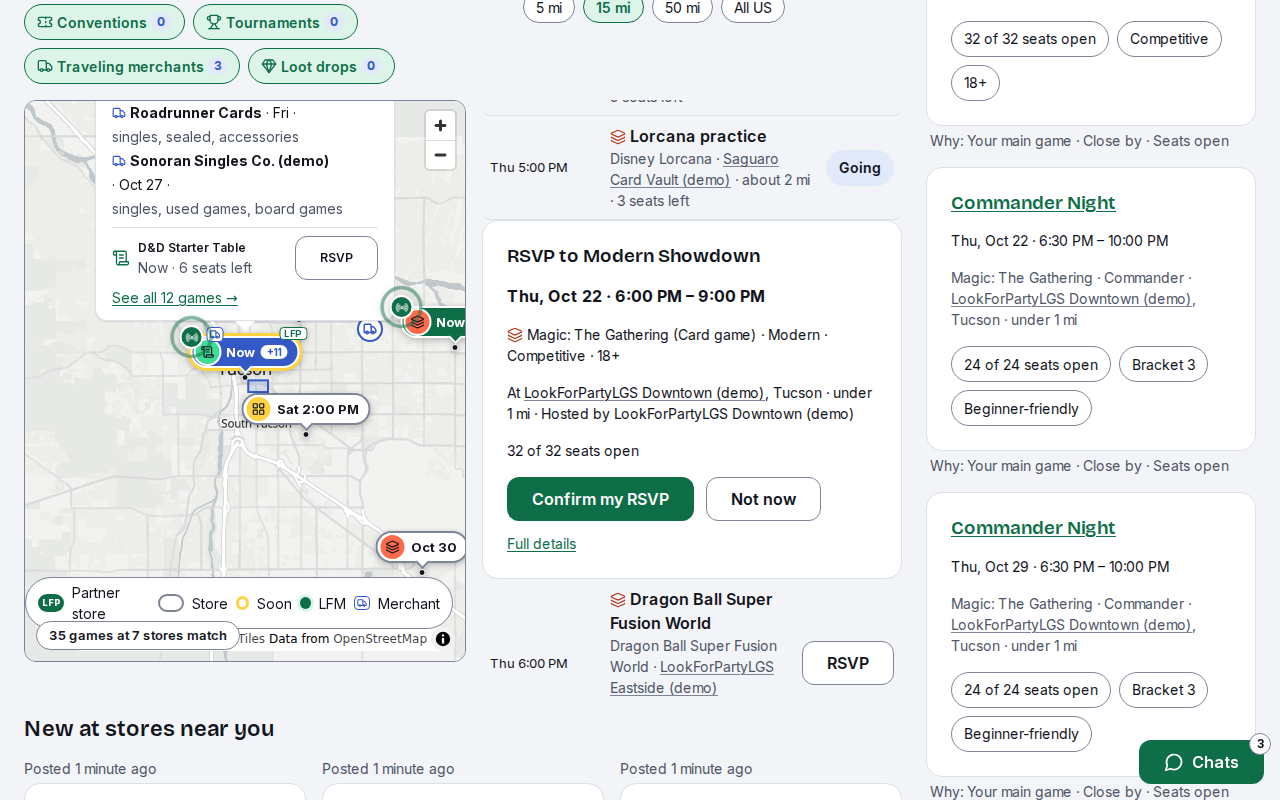
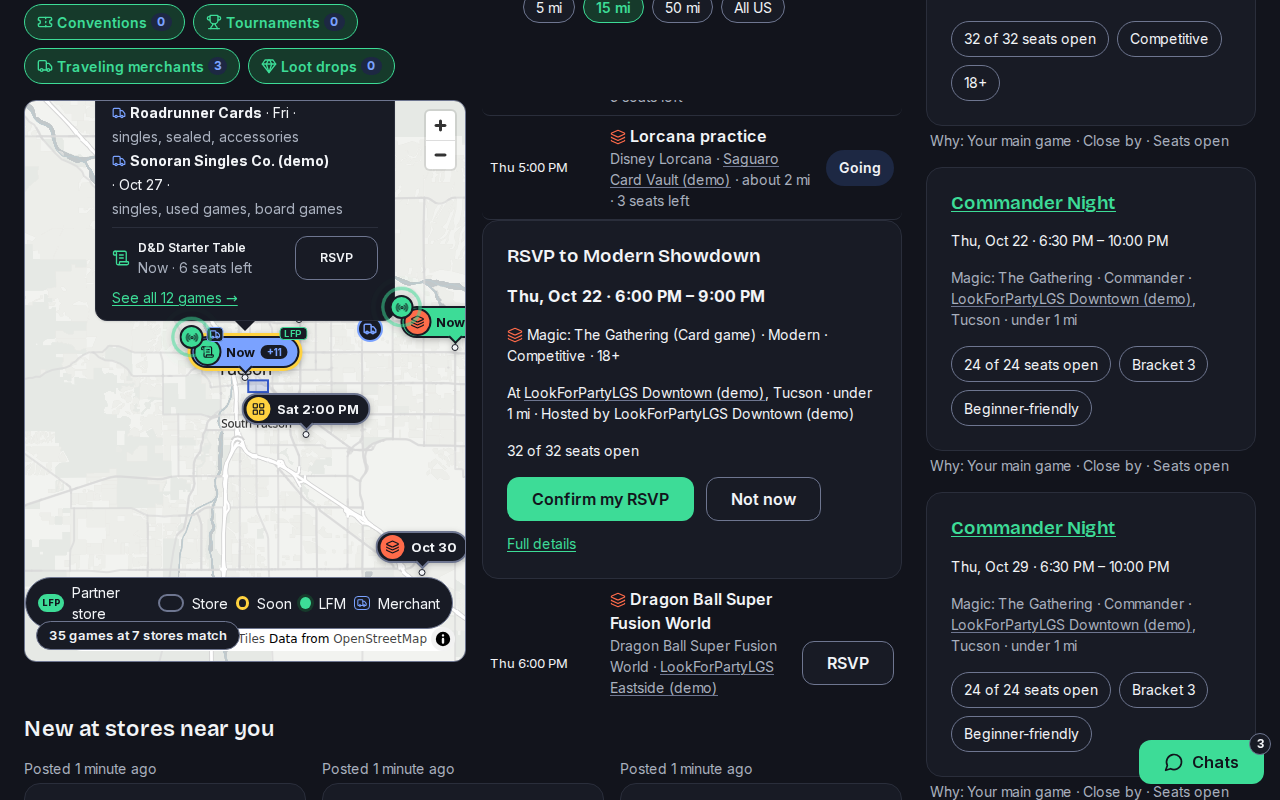
If it fits, press Confirm my RSVP. Your seat is only taken when you confirm. If the game is full, the button says Join the waitlist instead, and you get a seat if one opens up.
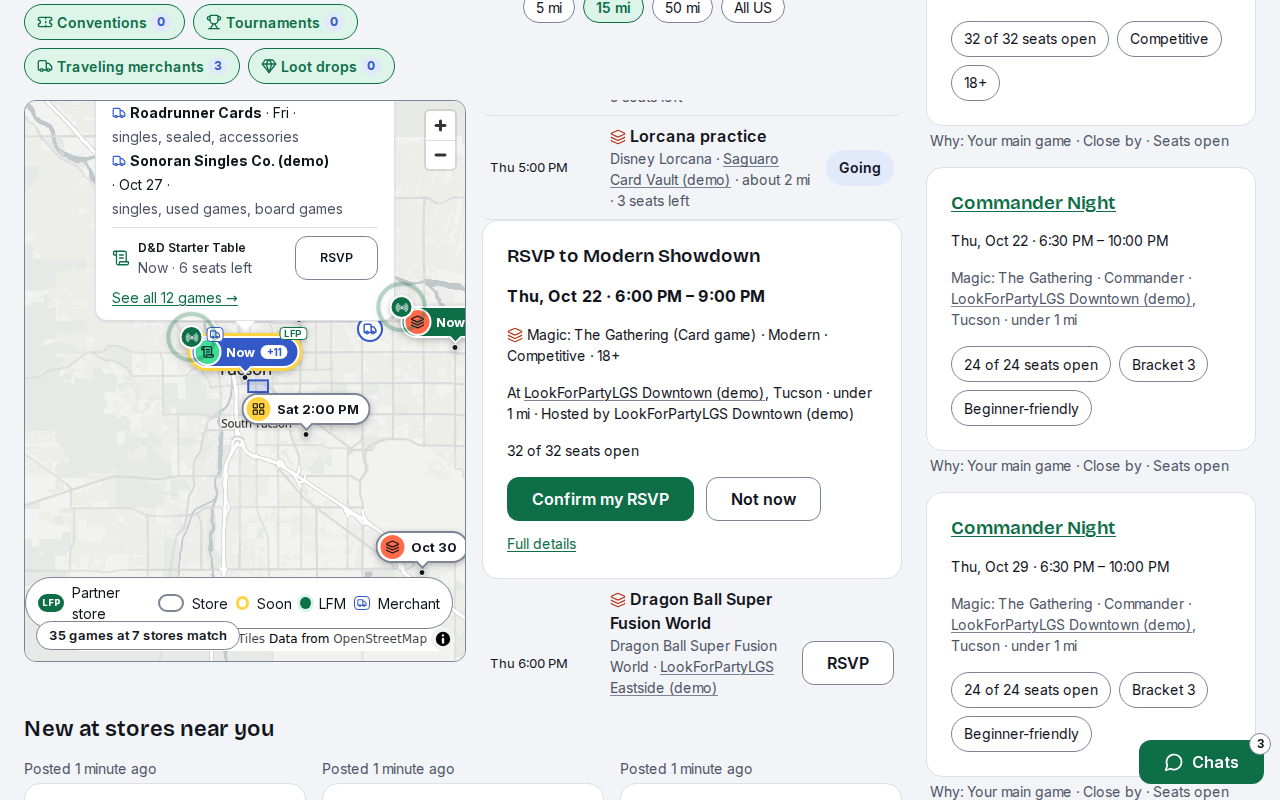
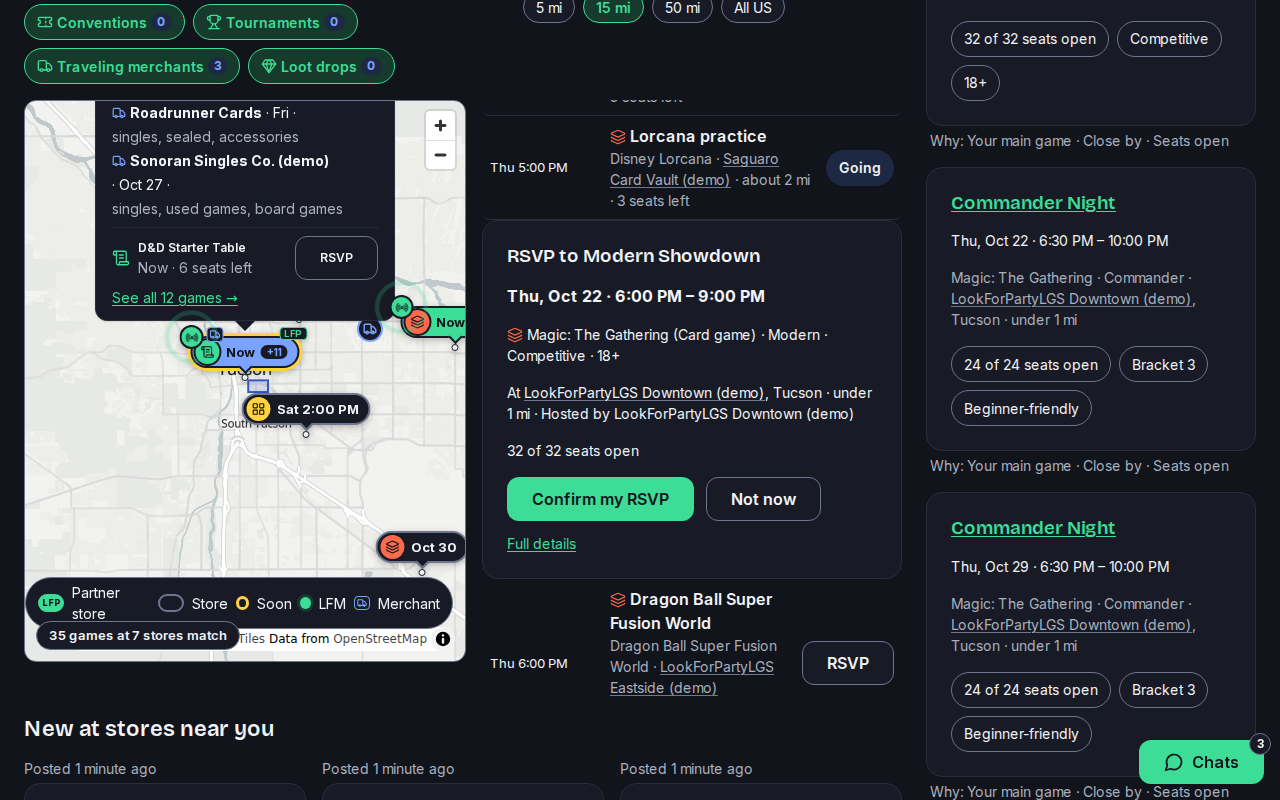
You're in. The game now shows Going in the list.
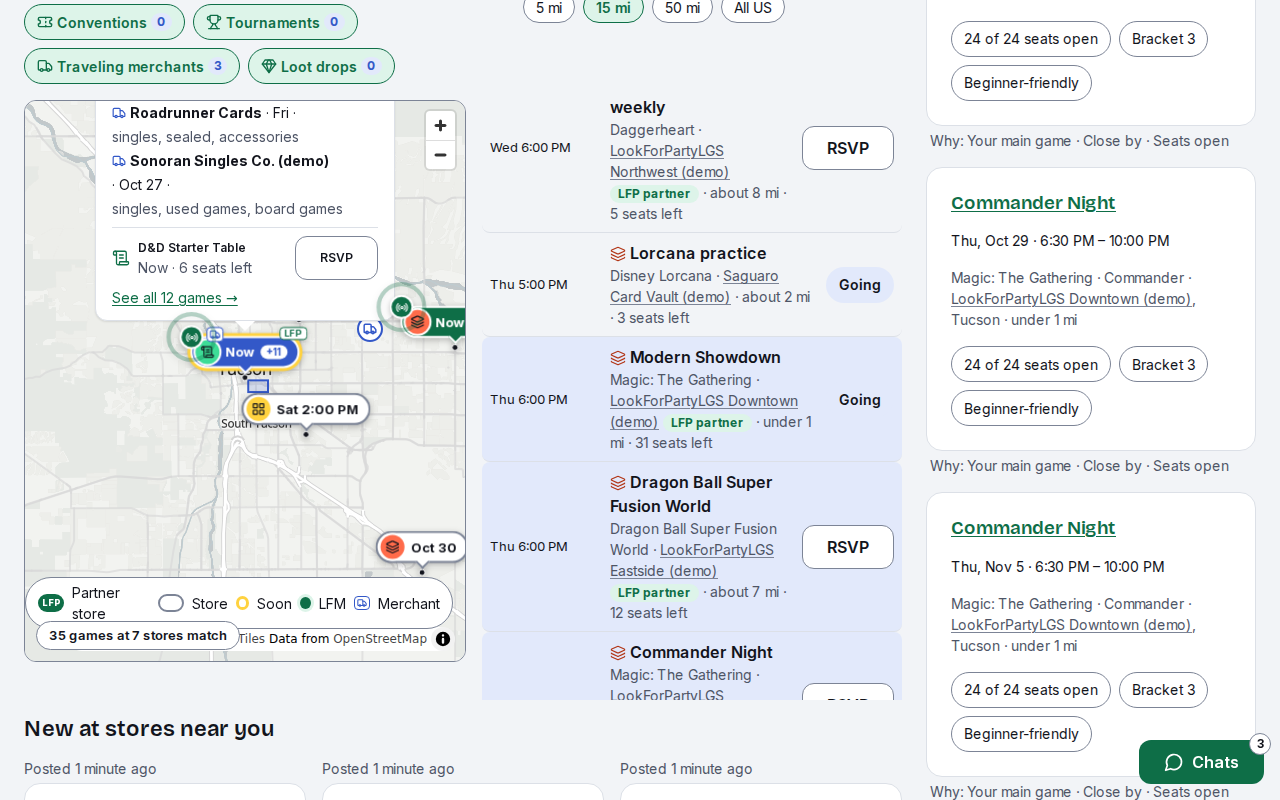
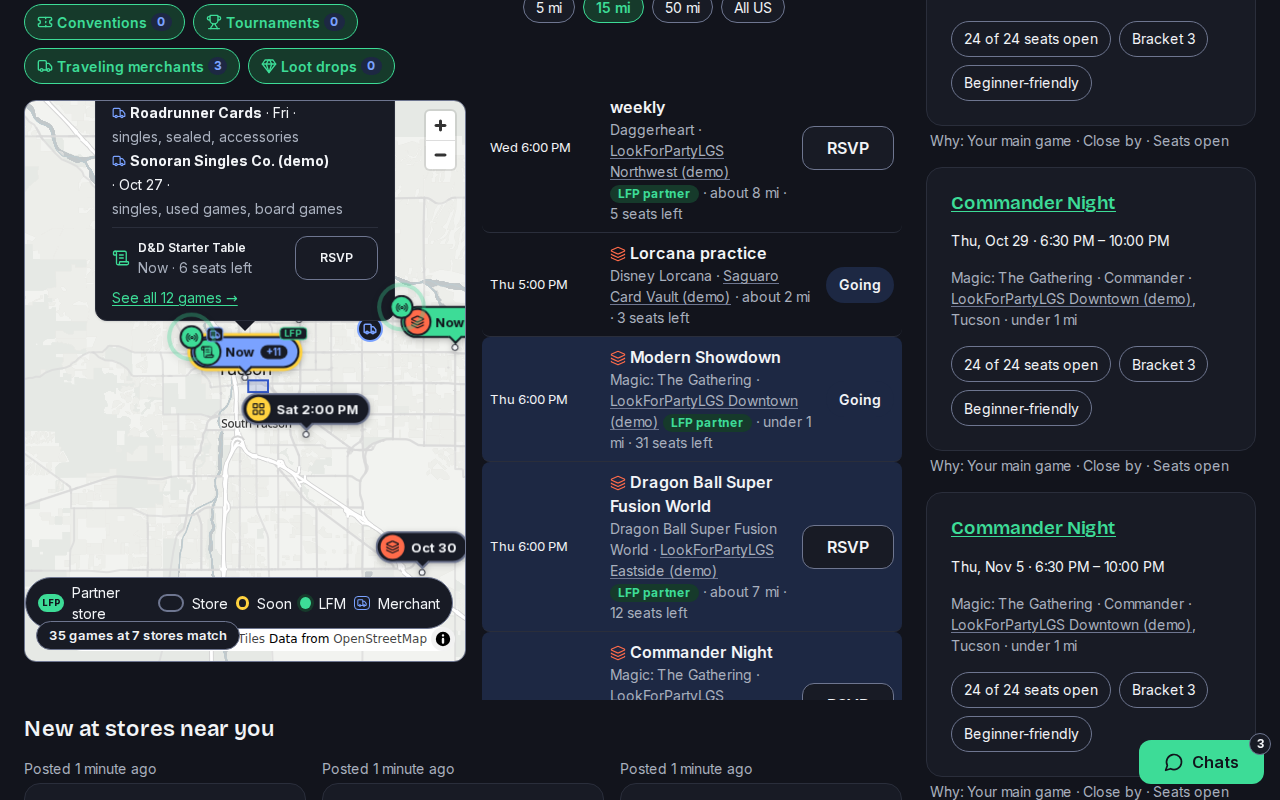
Your games are on the HUD, under Upcoming games, and on your Calendar. We'll send you a reminder the day before.
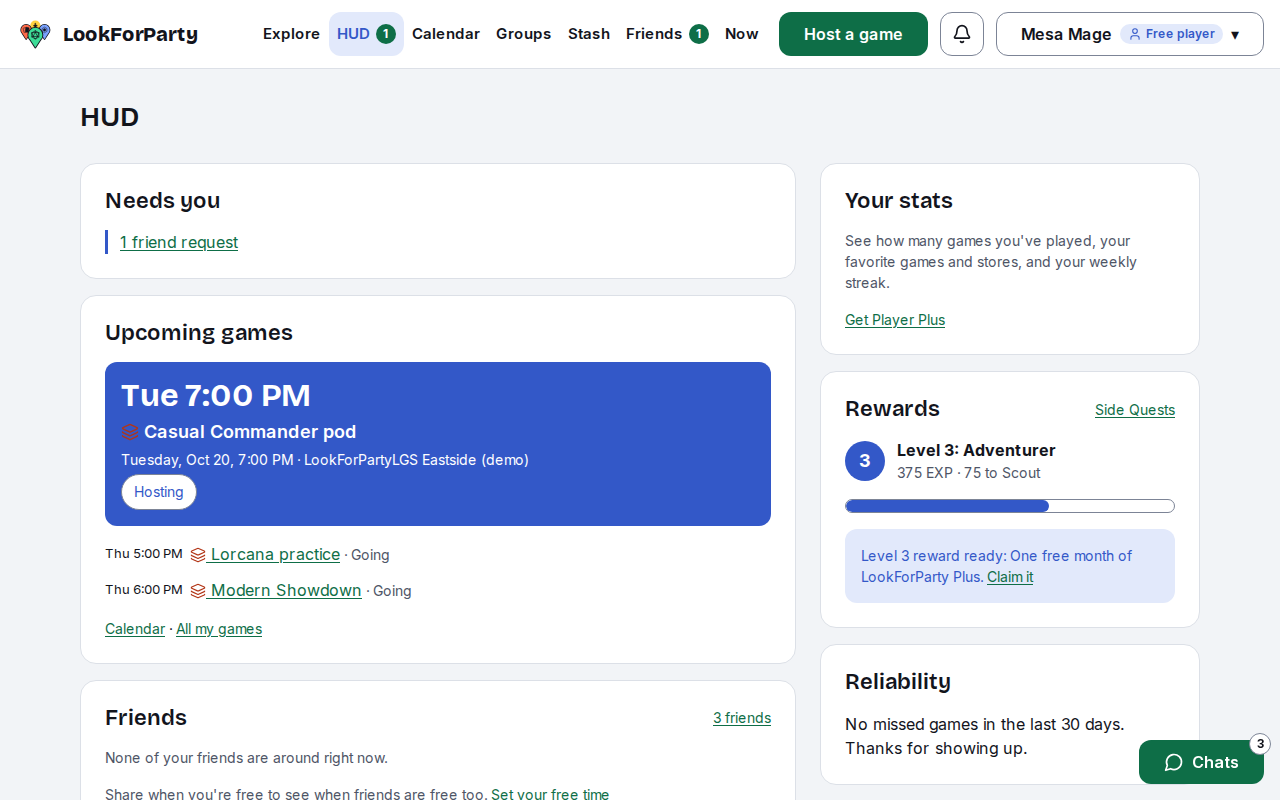
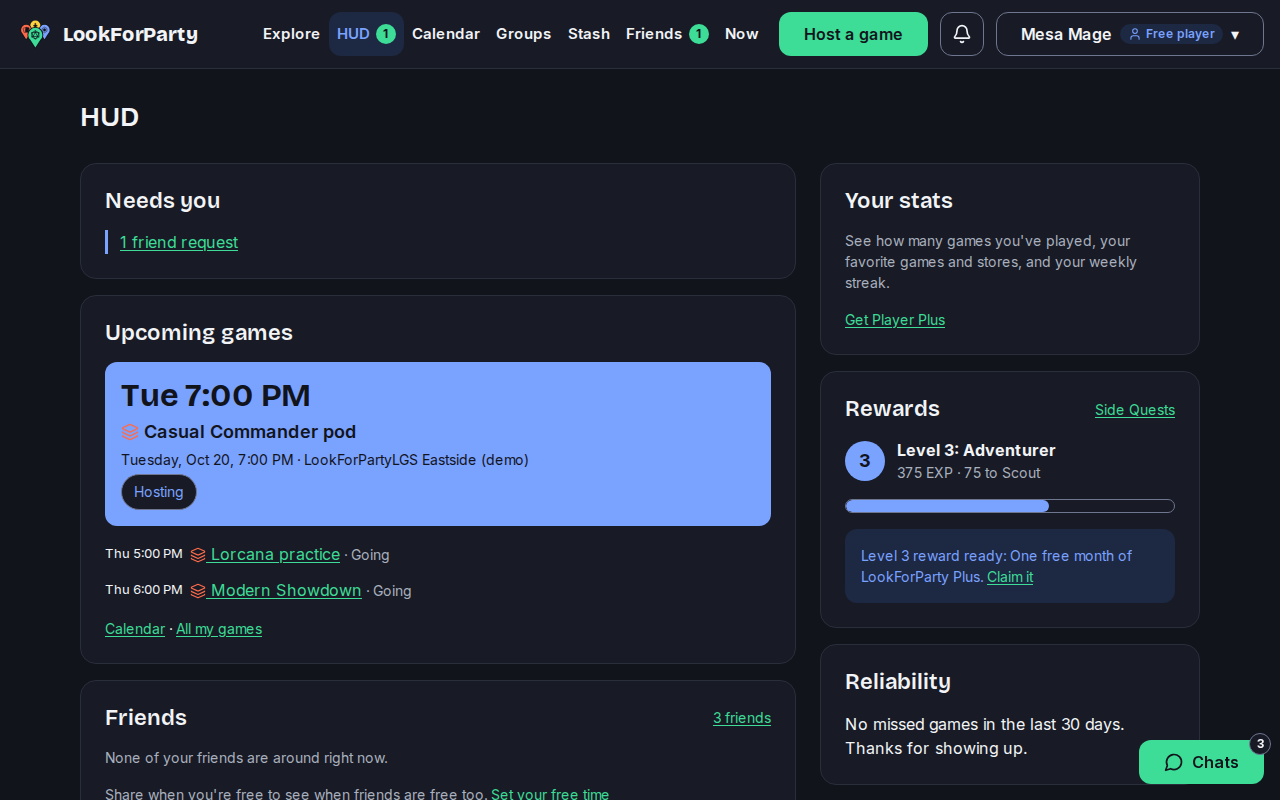
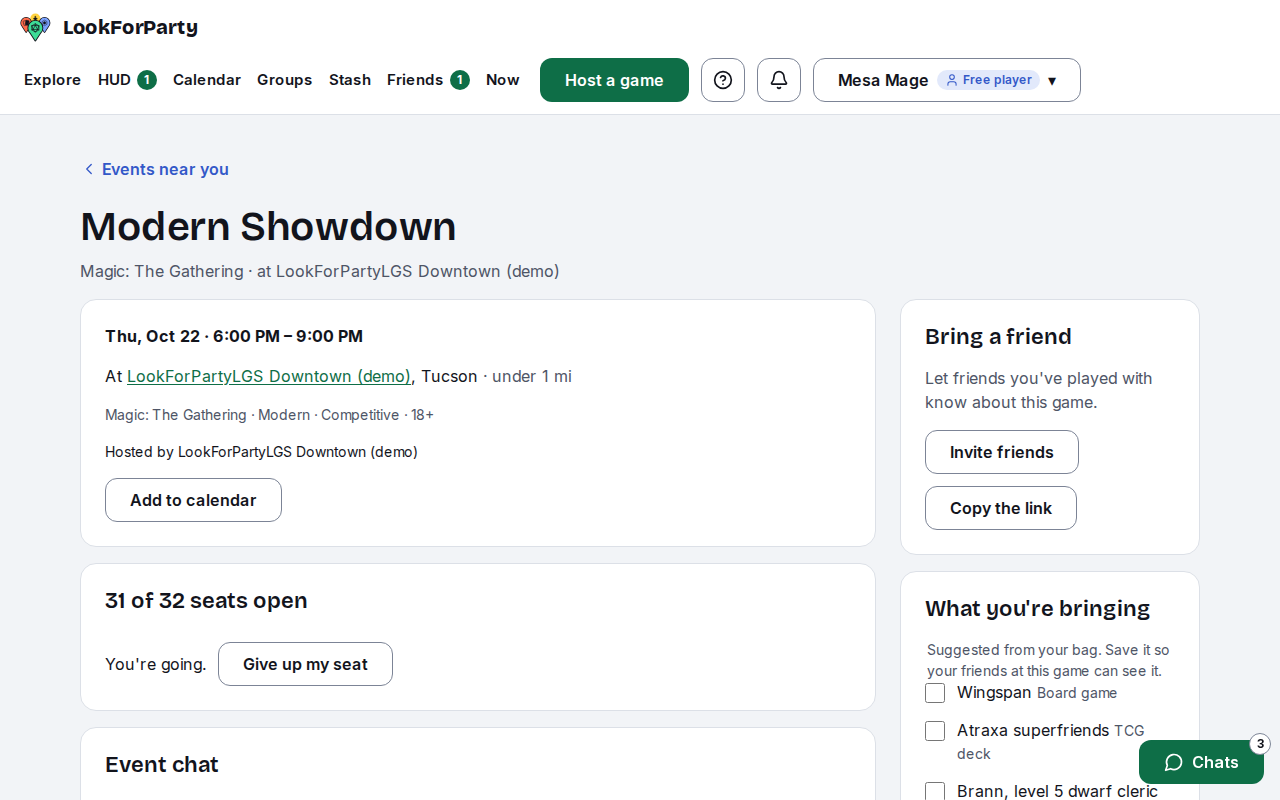
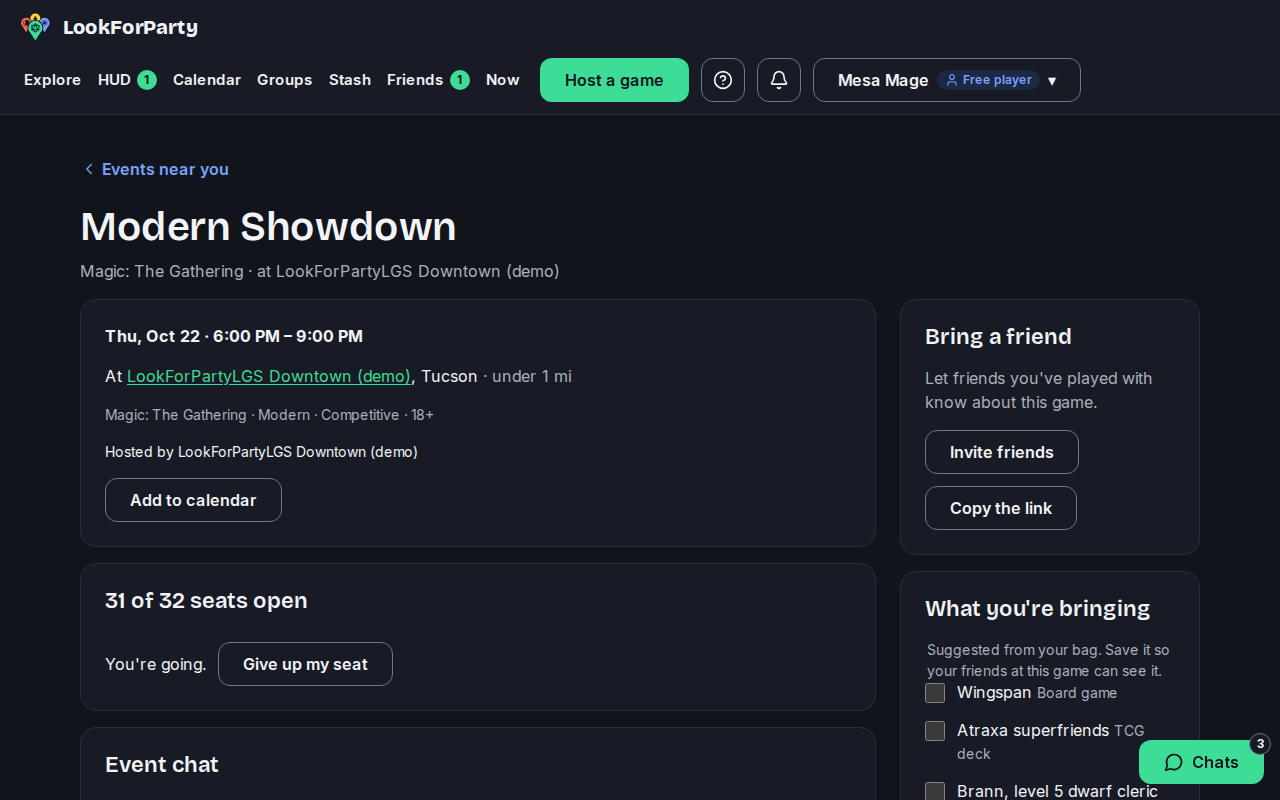
Can't make it after all? Open the game and press Give up my seat, so someone else can have it. Hosts mark who came, so let your seat go when plans change.
Next
Find a game near you
Explore shows the games coming up at stores near you, on a map and in a list. Find a table that fits your games, your time and how far you want to go.
Invite a friend
Bring a friend to LookForParty with an email invite, and ask your friends to a game you're hosting.
Something not match what you see? Tell us and we'll fix the guide.