Post your stops as a traveling merchant
Screenshots from
What it's for
If you sell cards and games on the road, post where you'll be selling. Players near each stop can then find you on the Explore map.
Who can use it
Traveling merchants
On Web
How to do it
Stops are for traveling merchants: vendors who sell at stores and events. Get the traveling merchant plan from Your stops or Your plan, and then you see a Traveling merchant badge in your account menu. Only you see the badge. Open the menu and choose Your stops.
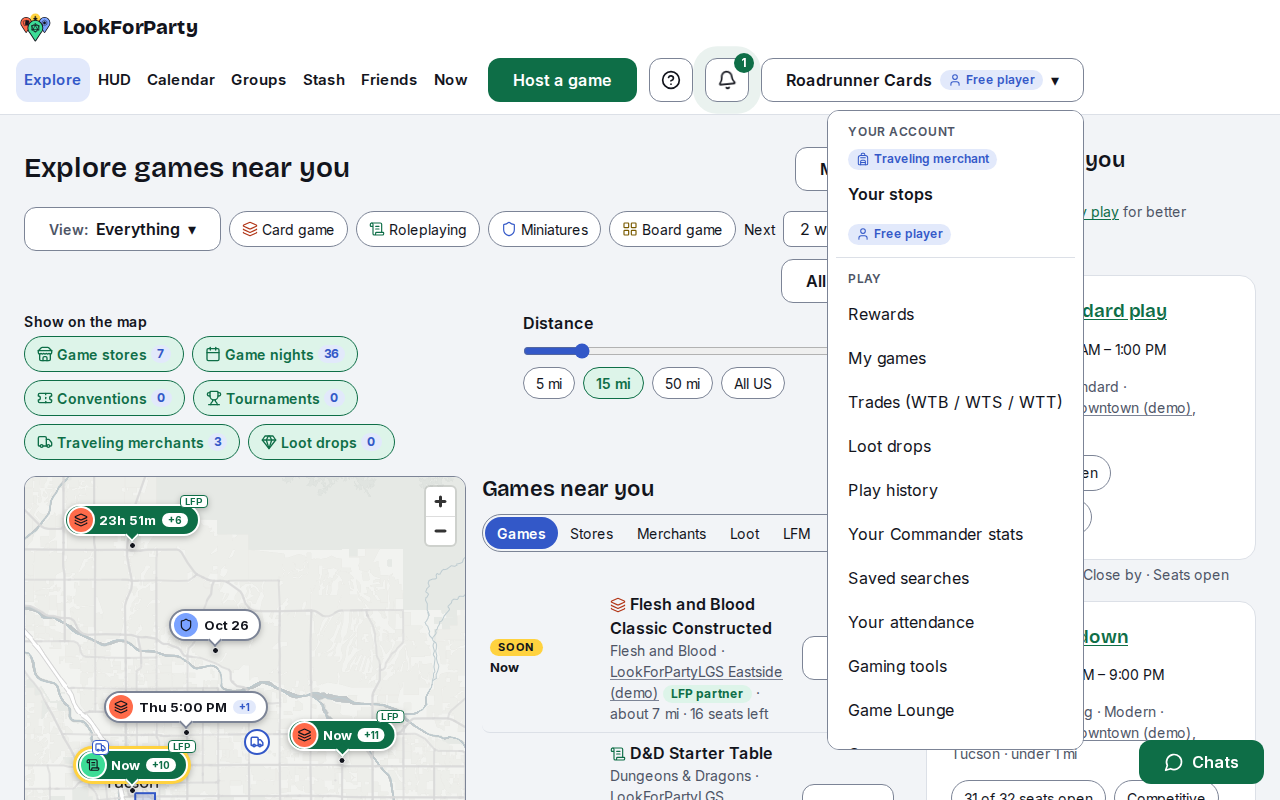
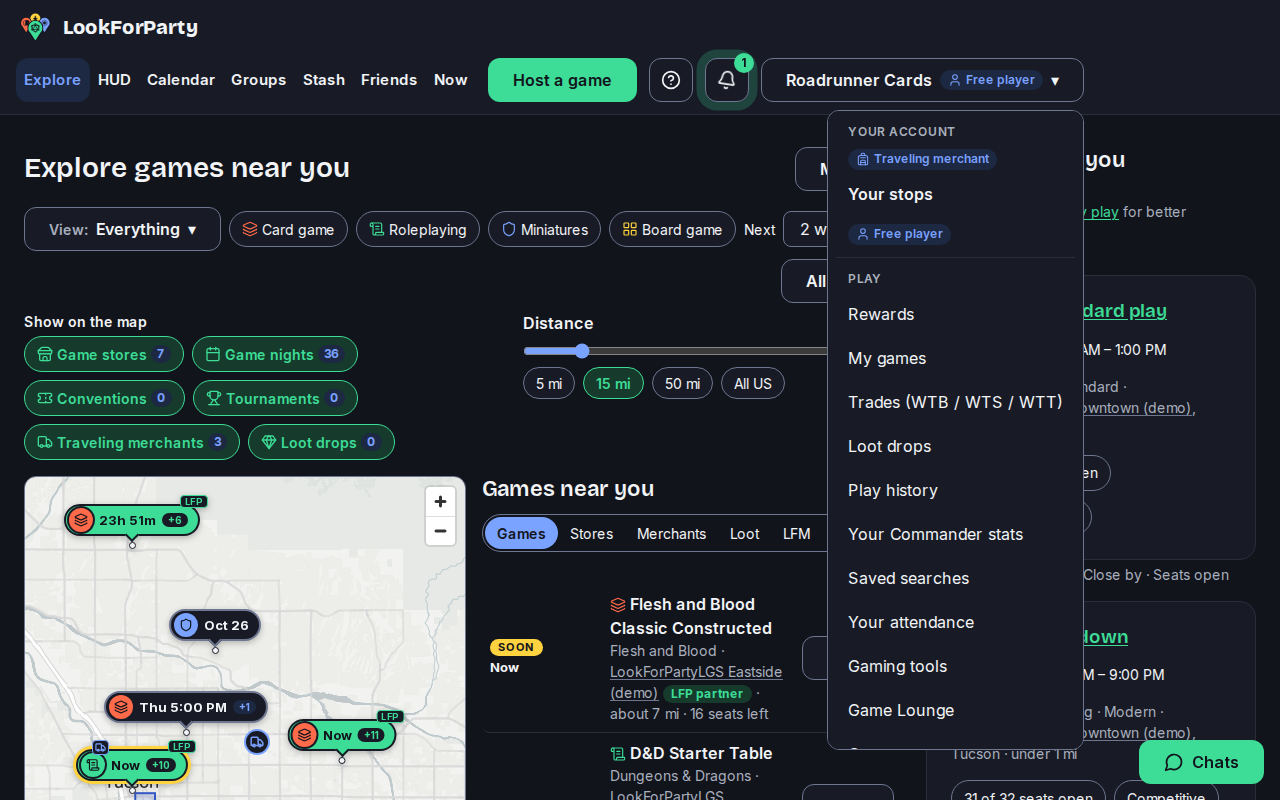
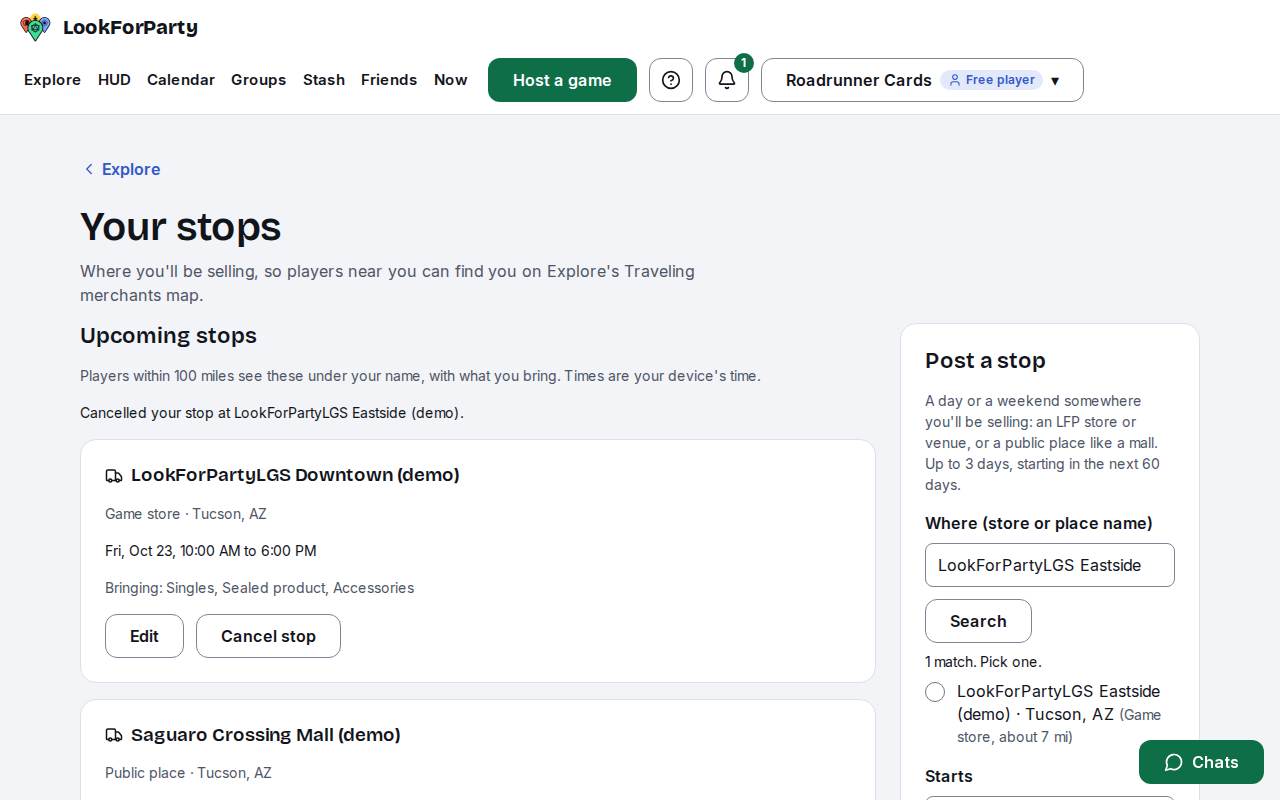
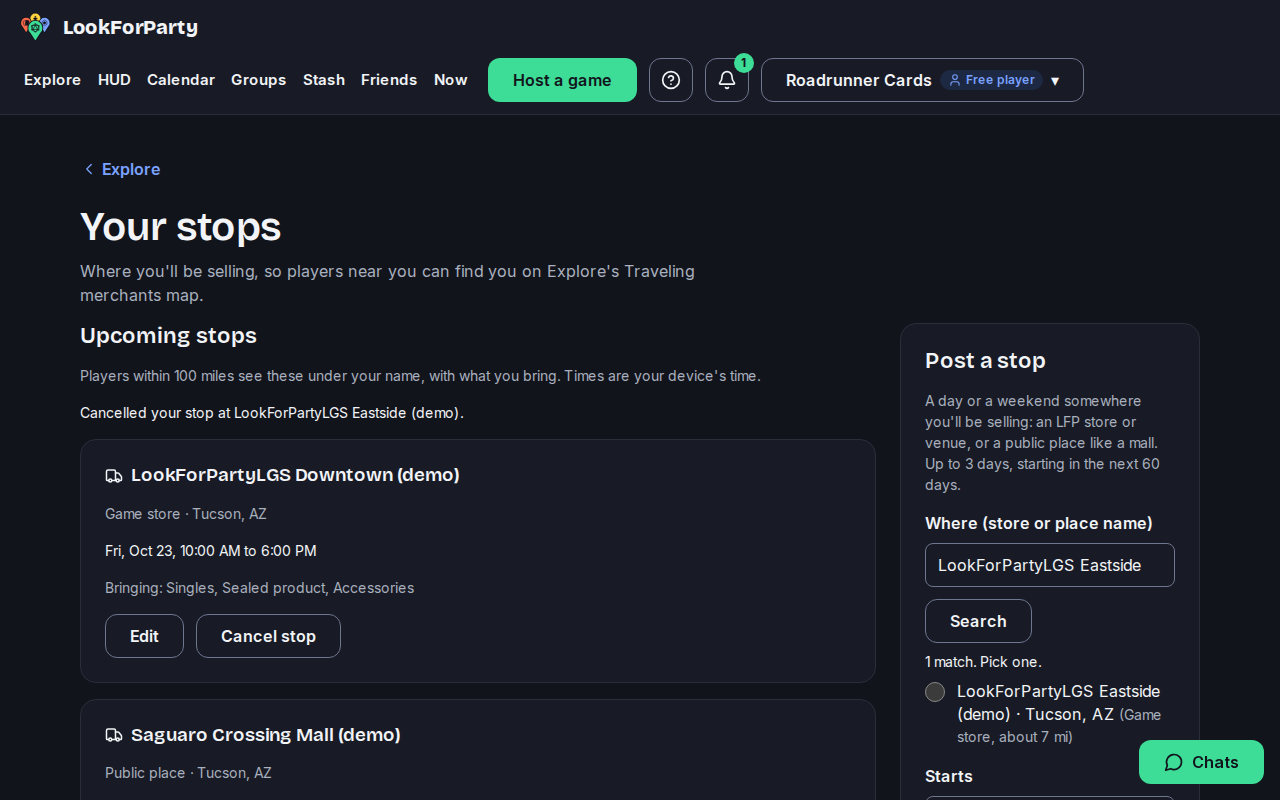
Your stops lists the places you've posted that haven't ended yet. Players within 100 miles see each stop under your gaming handle, with what you're bringing. Teens only see stops at game stores, and see "A traveling merchant" instead of your handle.
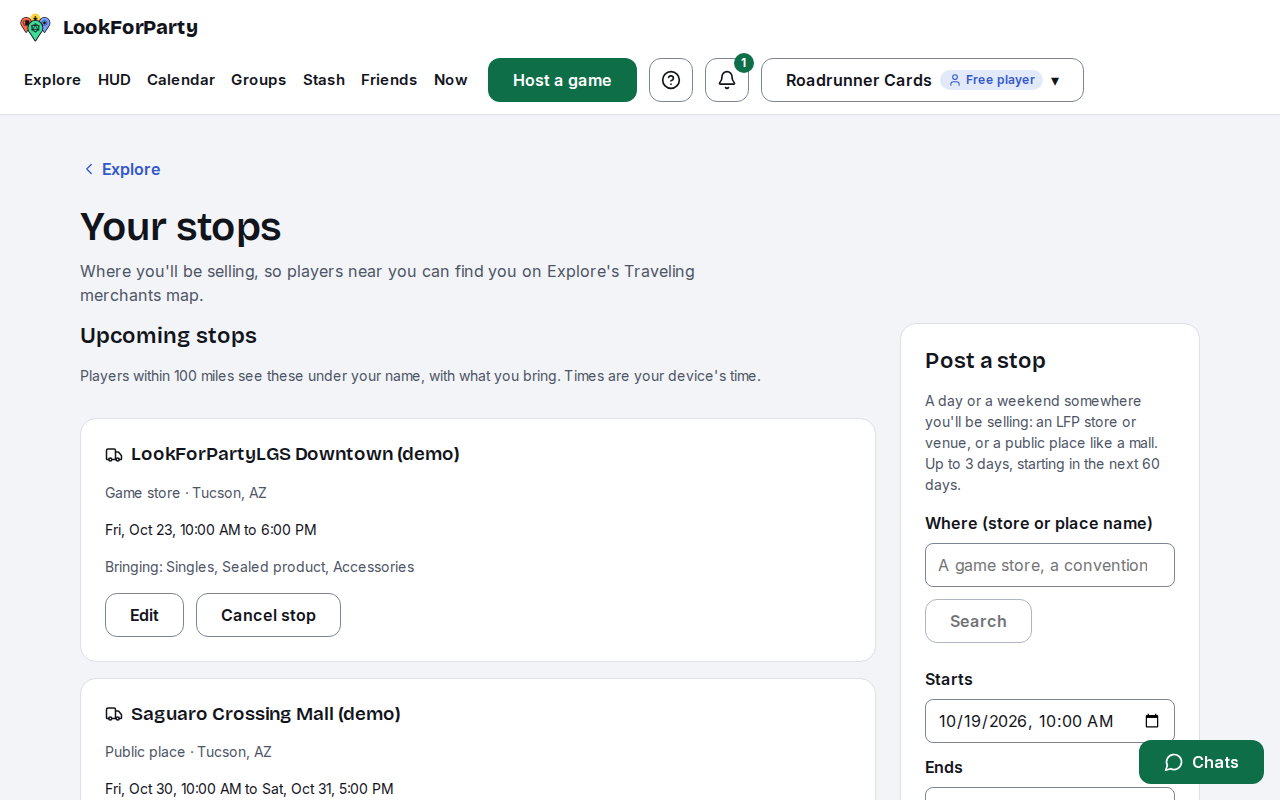
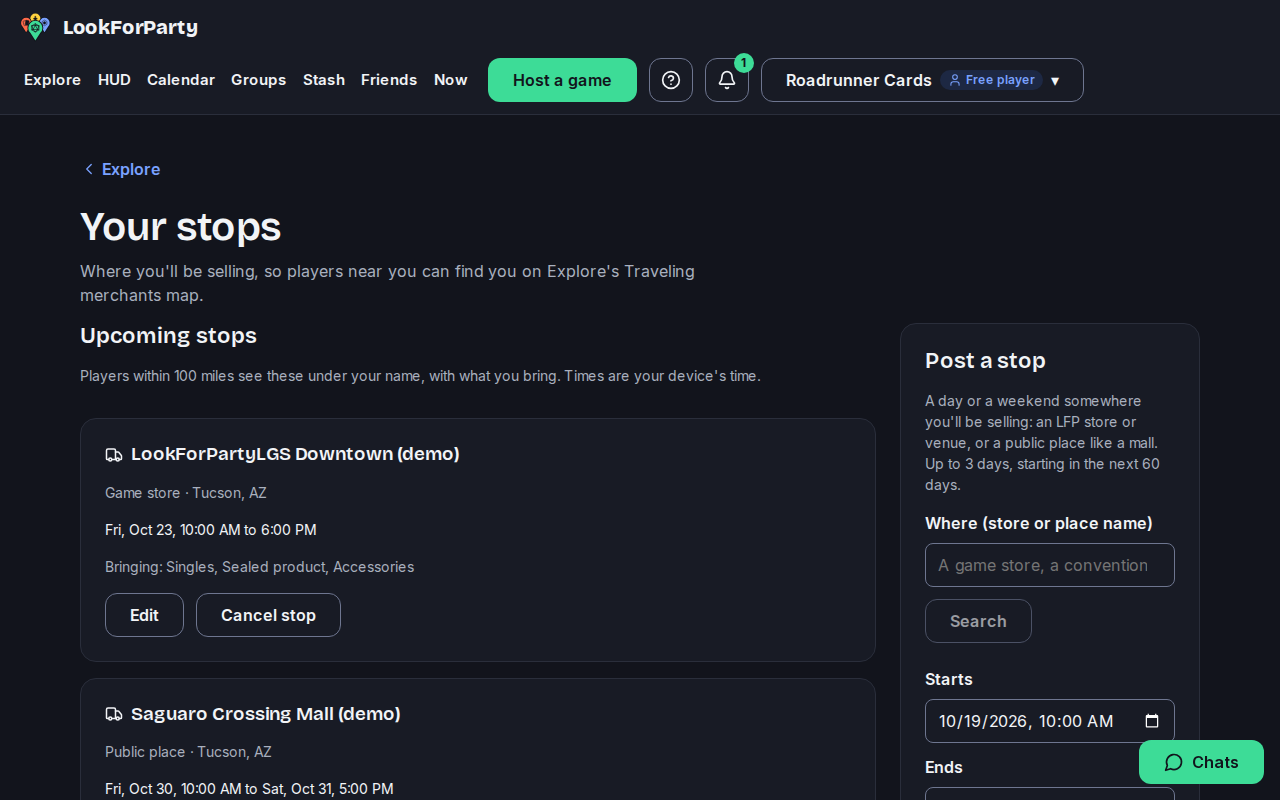
To post a new stop, search for where you'll be selling by its name: an LFP game store or event venue, or a public place like a mall. Pick it from the matches. You never type an address.
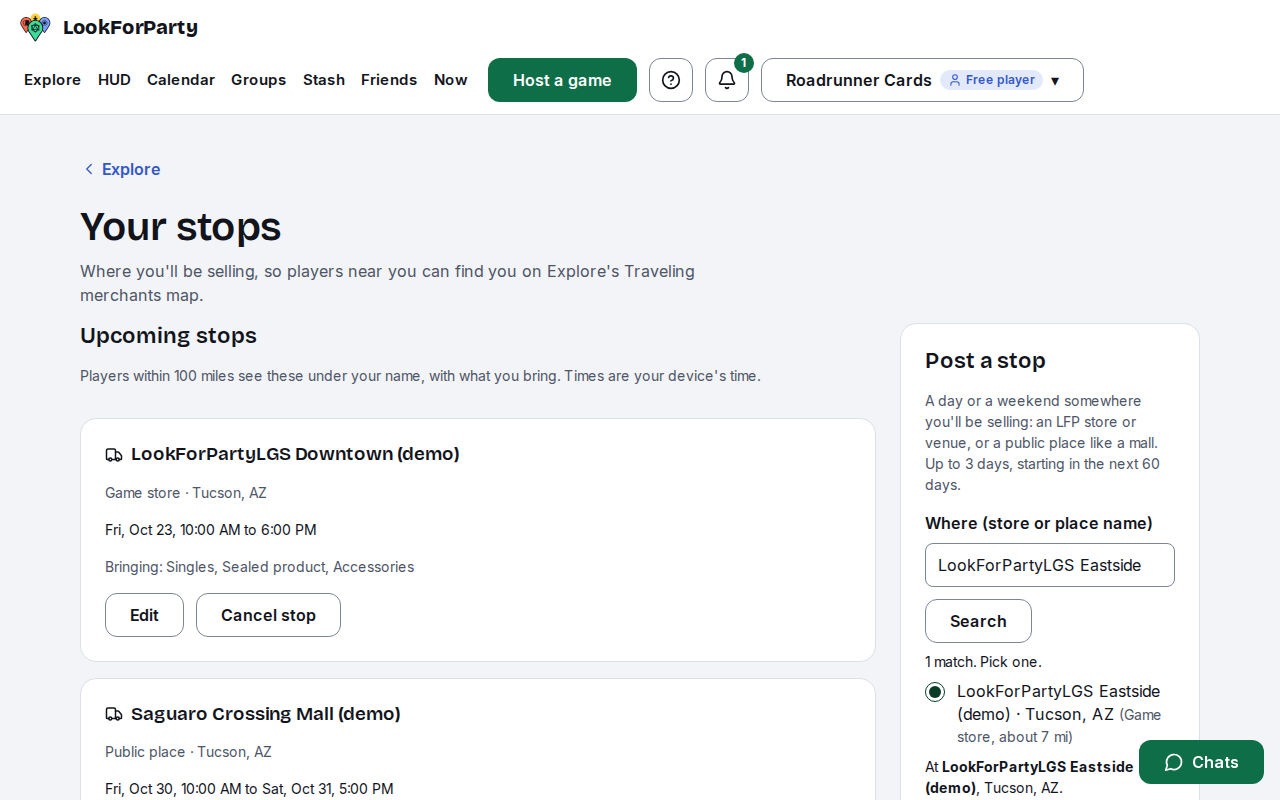
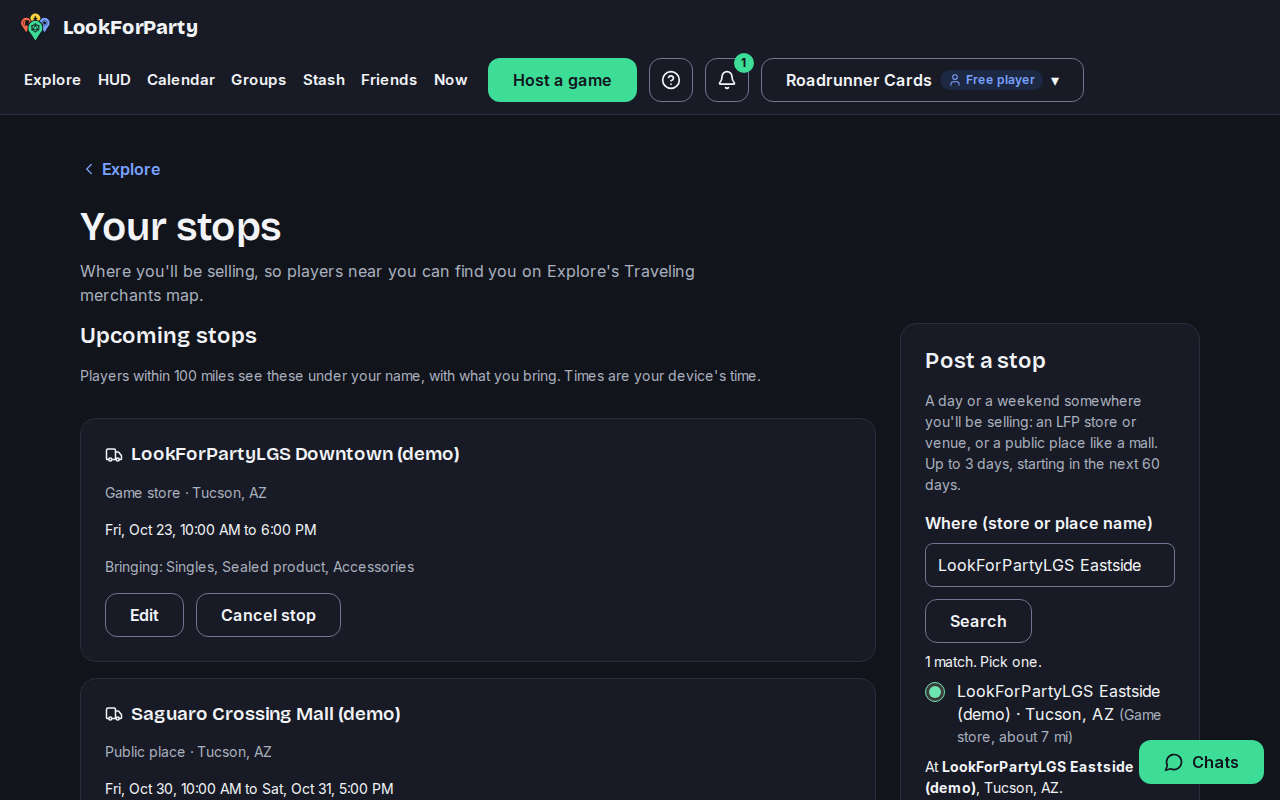
Set when the stop starts and ends (up to 3 days, starting in the next 60 days), then pick what you're bringing. Press Post stop.
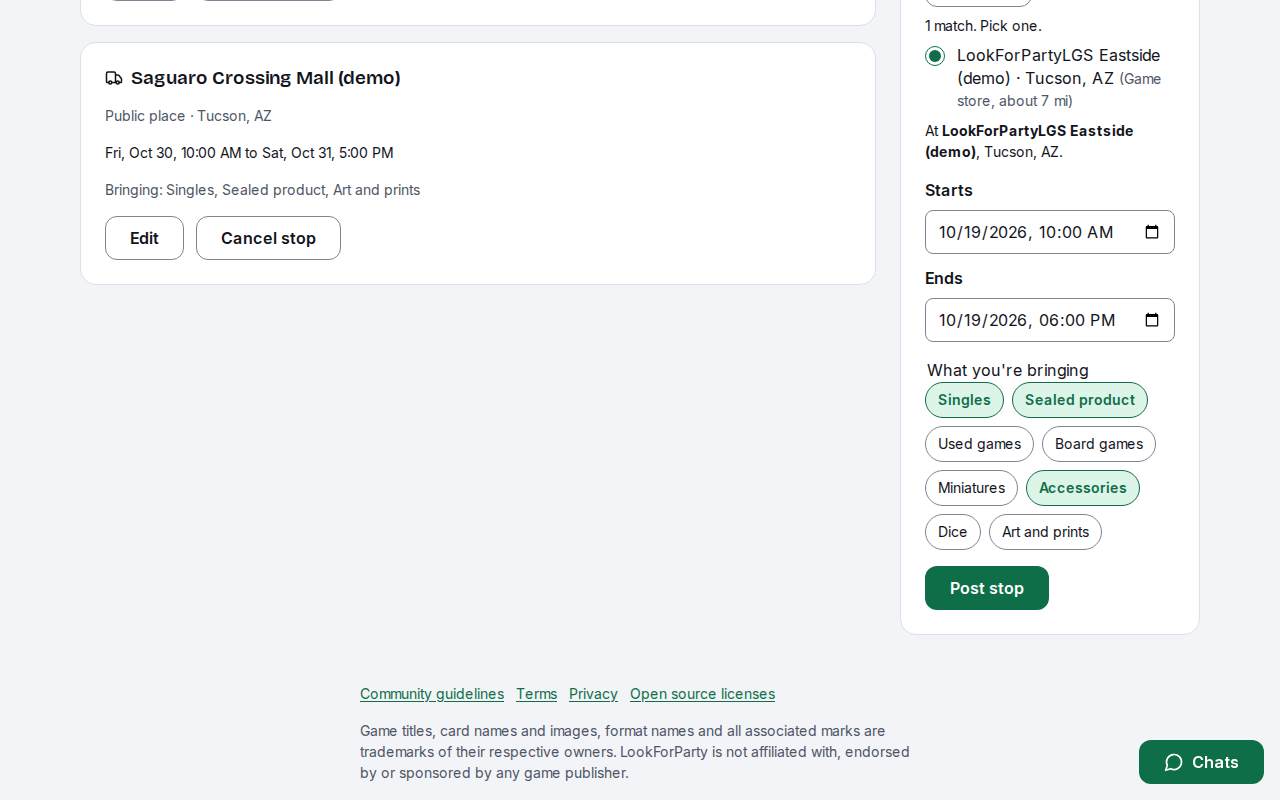
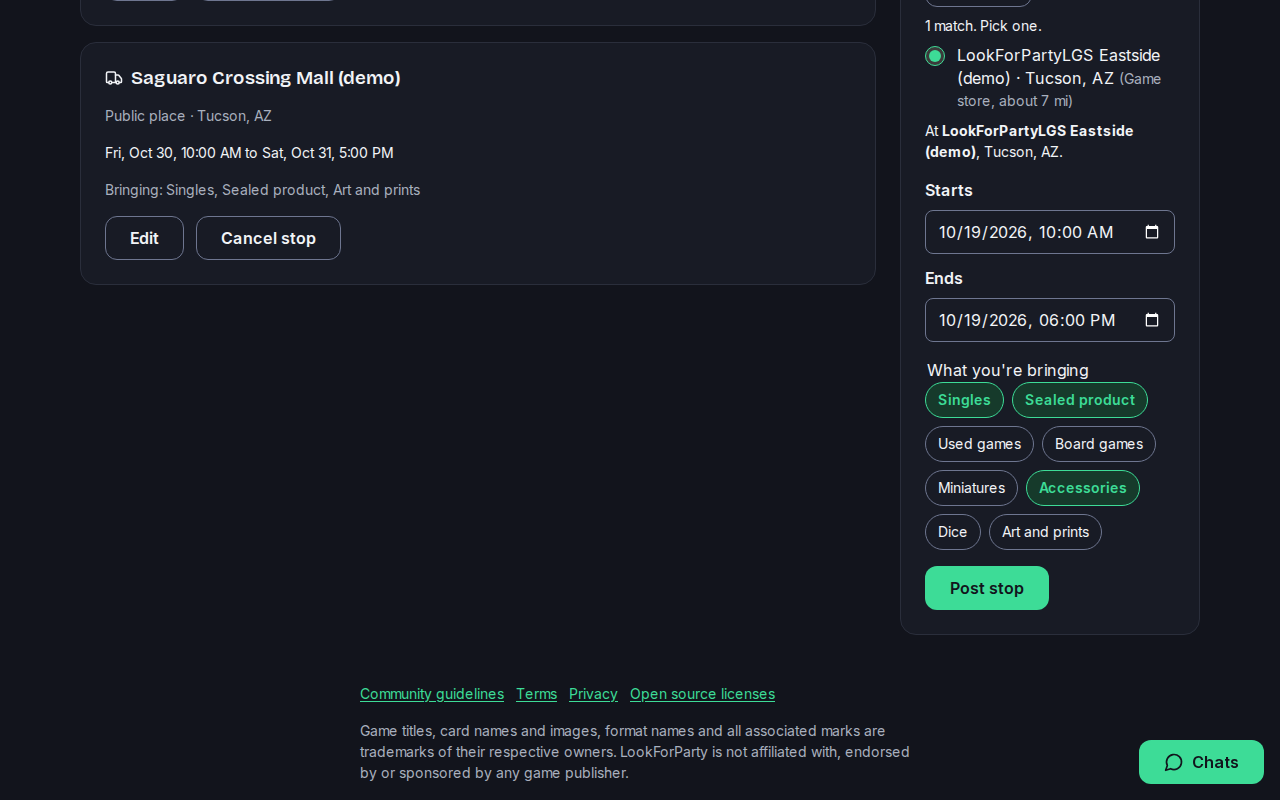
Your stop is posted and shows on Explore's Traveling merchants layer right away.
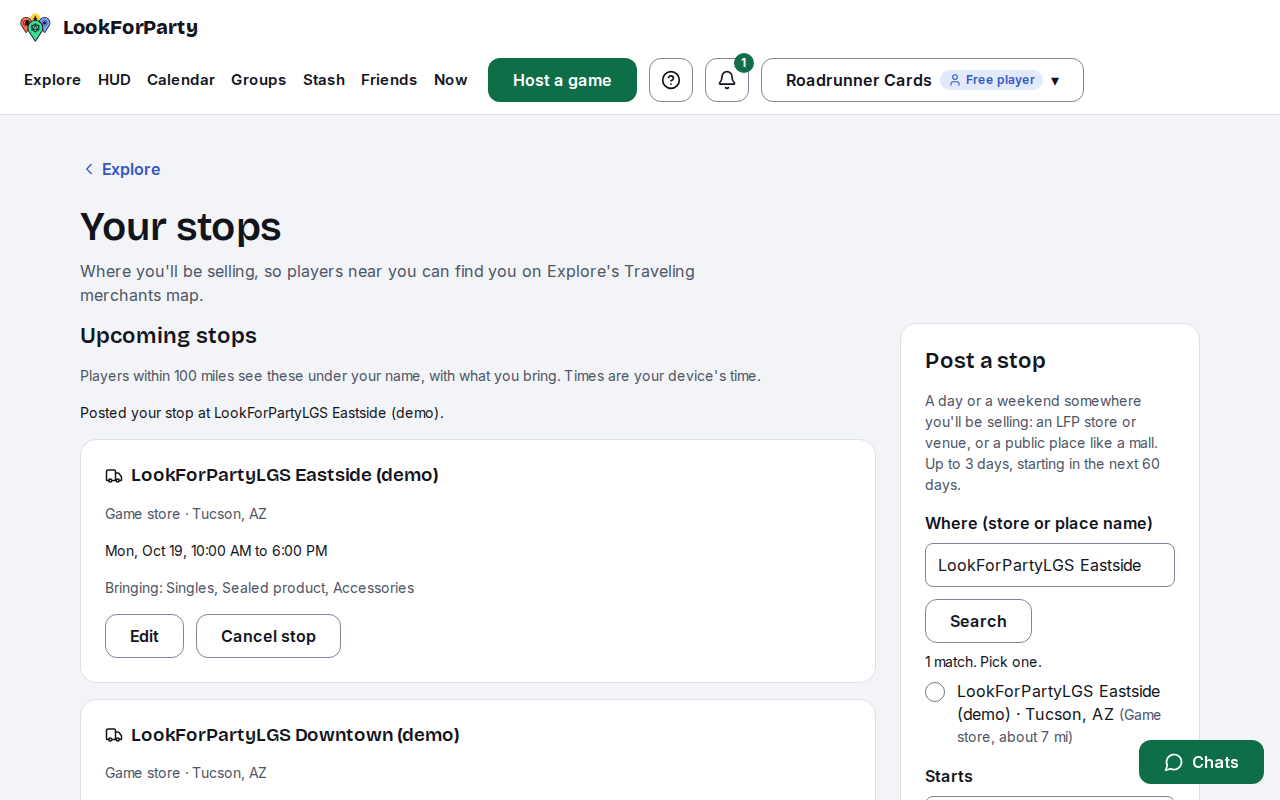
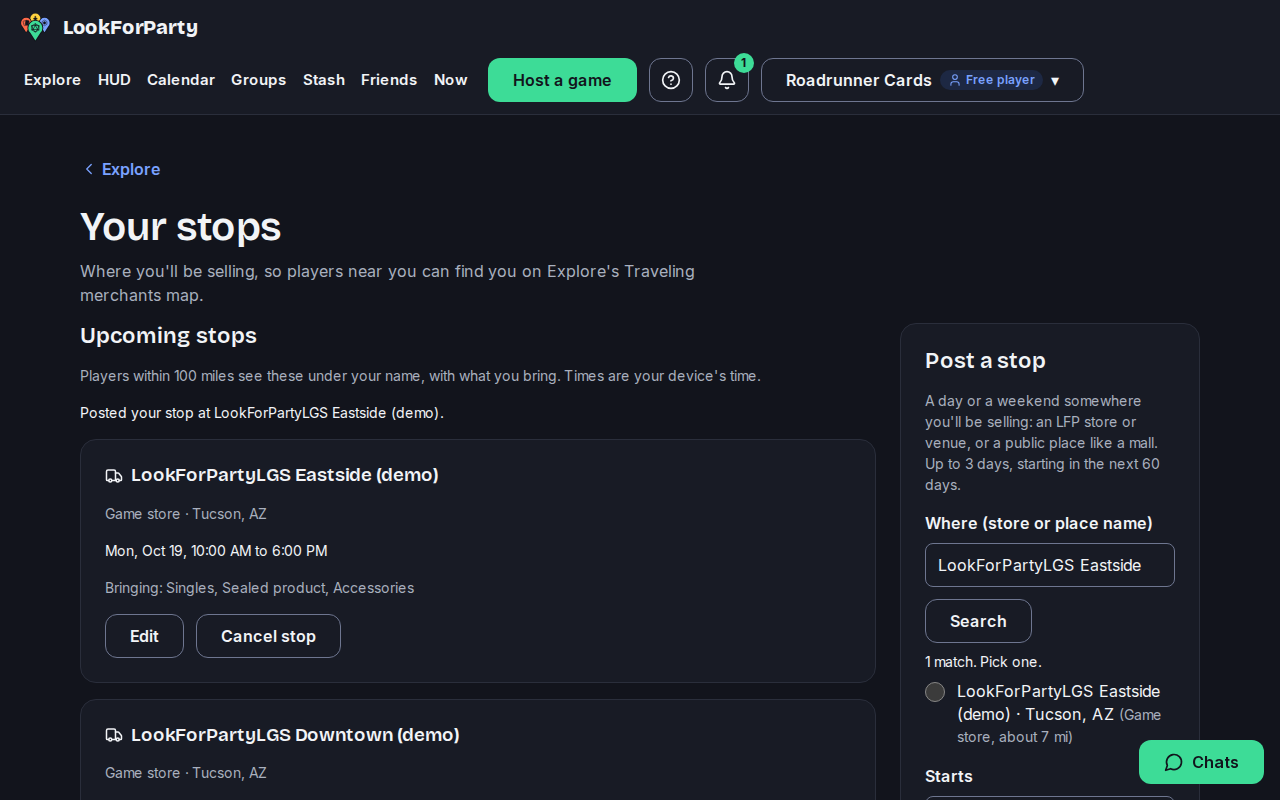
Plans change. To change a stop's times, place or what you're bringing, press Edit on it. Make your changes and press Save stop.
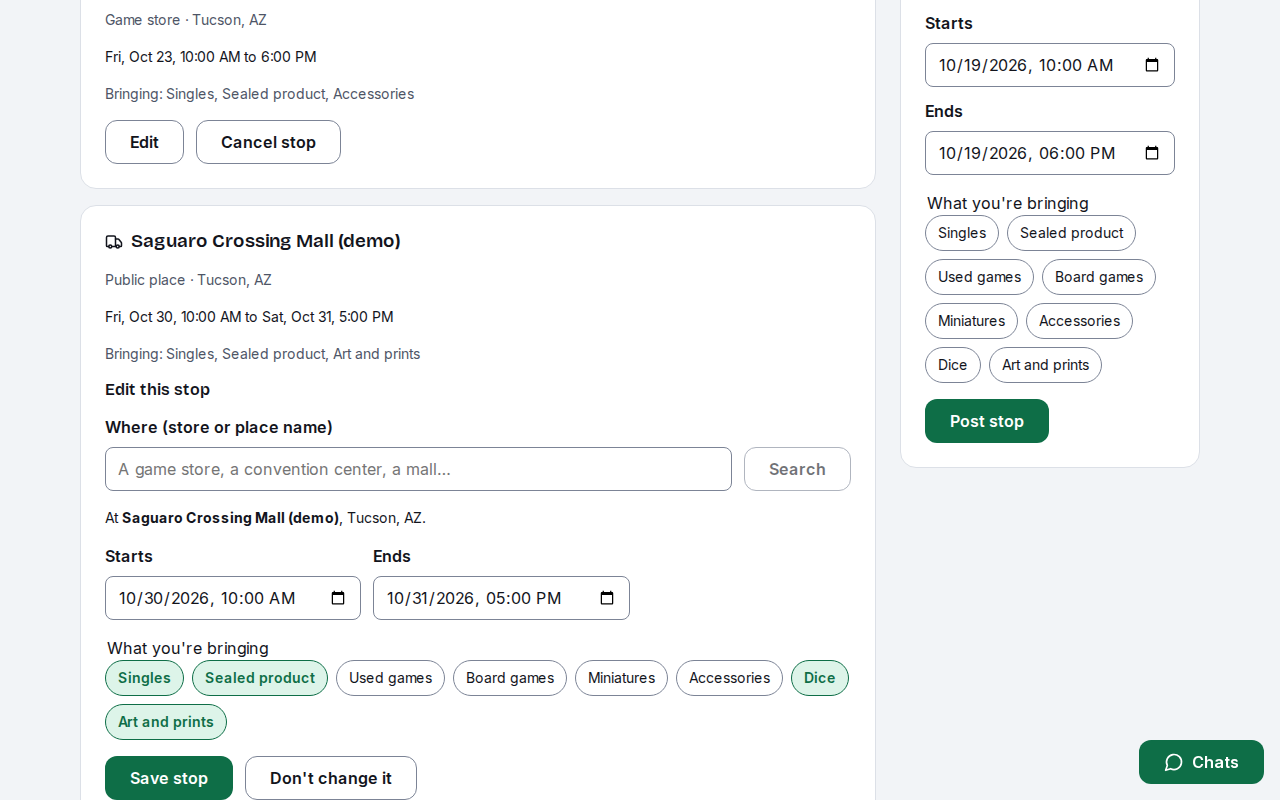
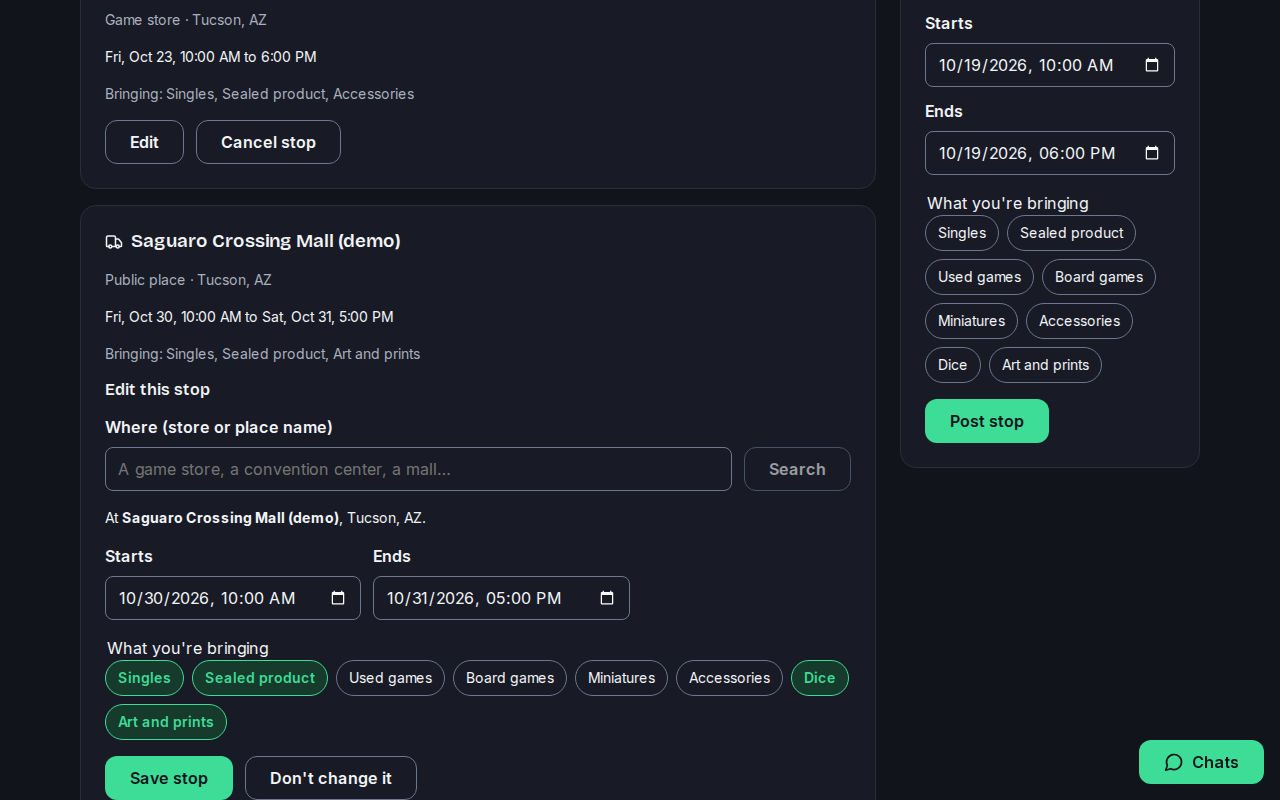
If you can't make it, press Cancel stop, then Cancel stop again to confirm. Players stop seeing it at once.
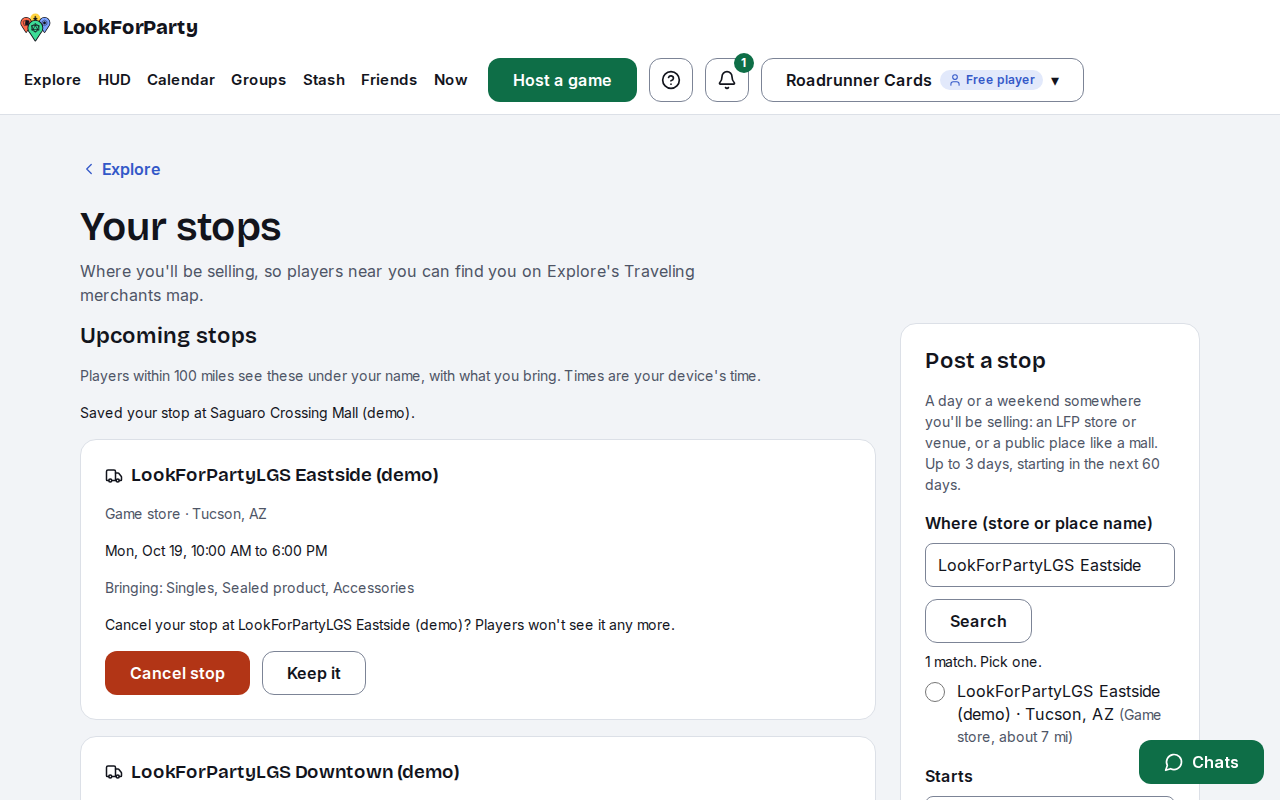
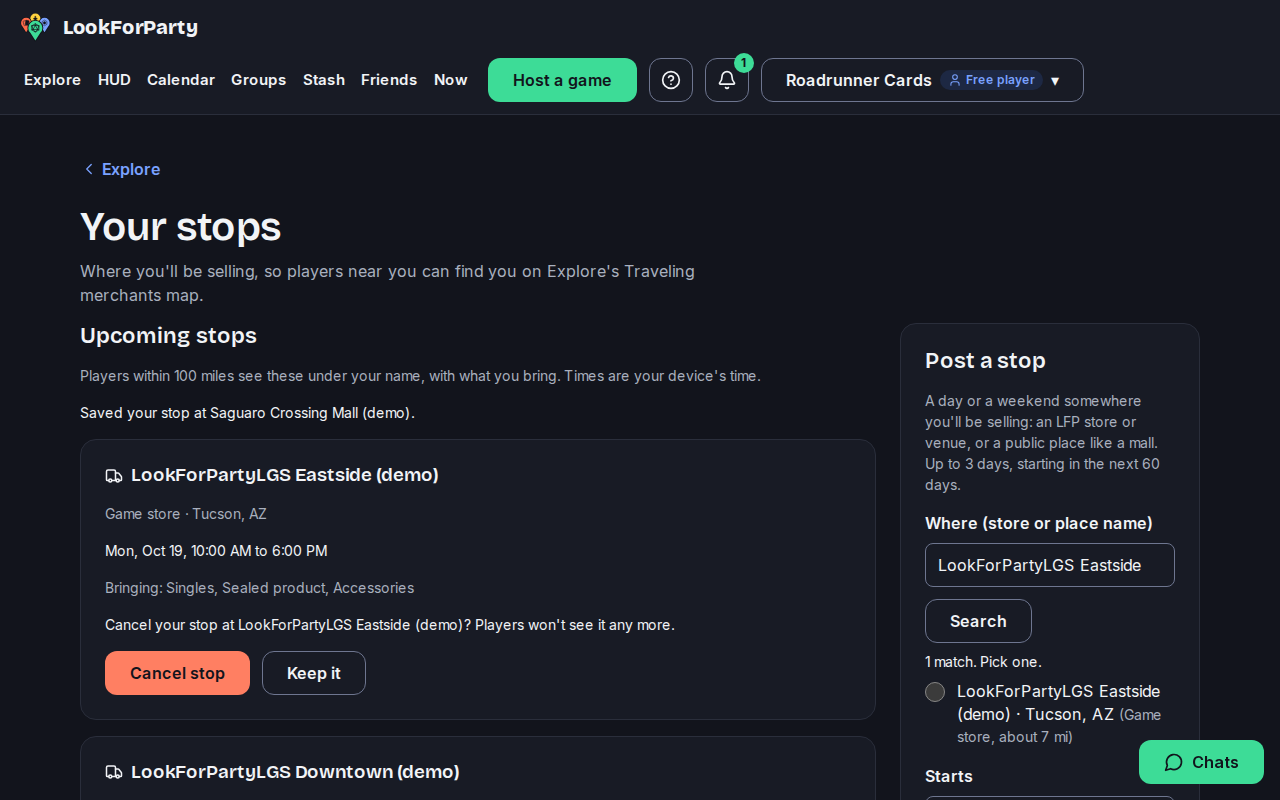
A store can take a merchant's stop off its own map pin. If one does, your stop says so here, and players don't see it at that store.
Next
Find traveling merchants near you
Traveling merchants are vendors who bring cards, sealed product and more to stores and events. See where they'll be selling near you, and when.
Sell, buy or trade cards with Trades
Post what you want to sell (WTS), buy (WTB) or trade (WTT), so adults and stores near you can find it. Then talk it over in a trade chat.
List a vendor visiting your store
Tell nearby players when a traveling merchant or vendor is coming to your store, and what they're bringing. You can also see the stops merchants post at your store, and take one off your pin.
Something not match what you see? Tell us and we'll fix the guide.